1
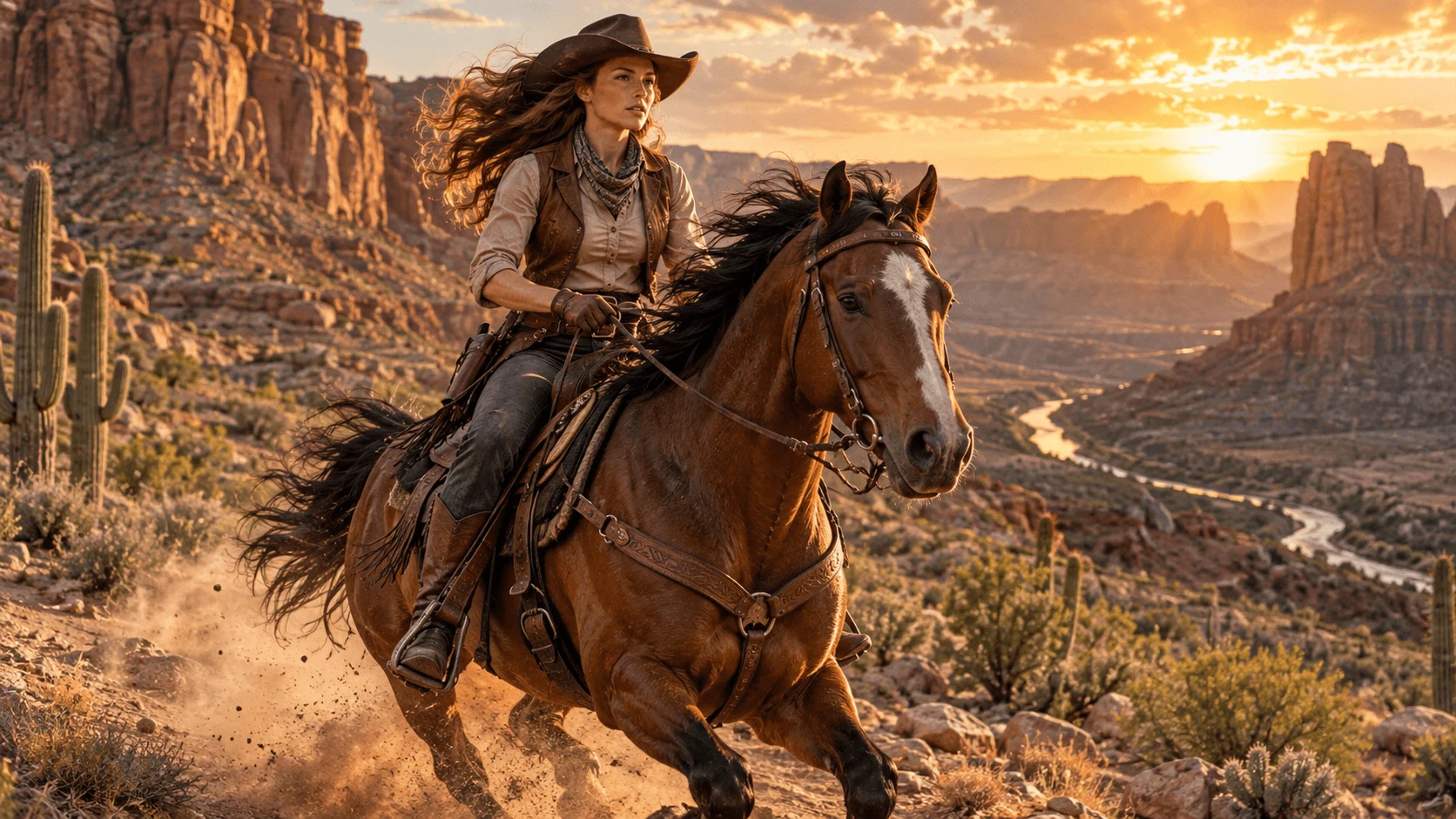
Sharper high-resolution output
Create compositions that emphasise crisp edges, product contours, textures and small scene details. Choose a supported resolution for your intended format and inspect the available original file at full size.
Turn a description into a visual, or bring a reference to refine a product shot, portrait, poster, or scene.
Try GPT Image 2.5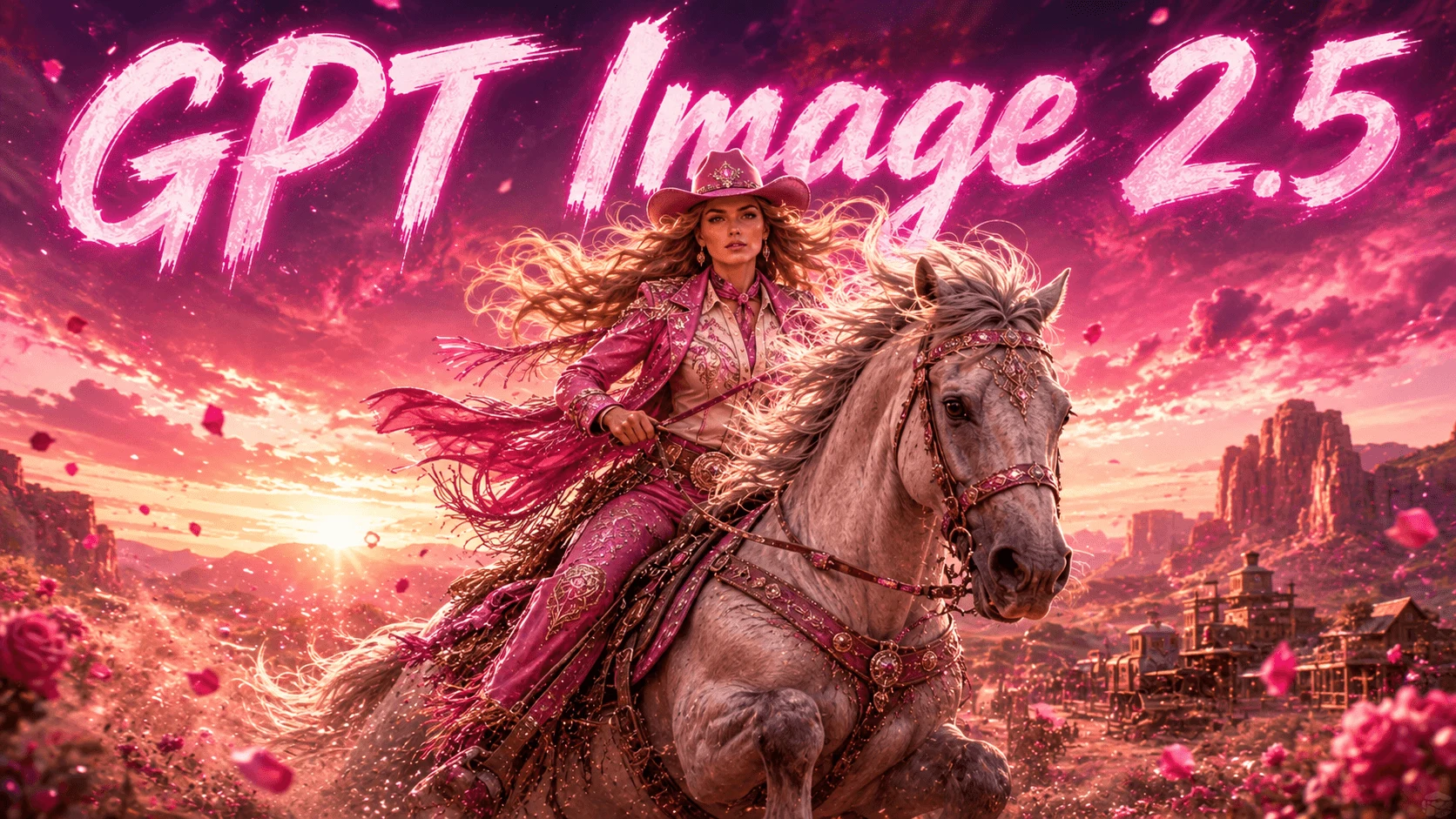 Reference-site example; not a verified result generated on Gapti.
Explore high-resolution compositions, readable typography, detailed instructions and repeated editing. These examples illustrate creative directions; review actual outputs against your brief.
Create compositions that emphasise crisp edges, product contours, textures and small scene details. Choose a supported resolution for your intended format and inspect the available original file at full size.
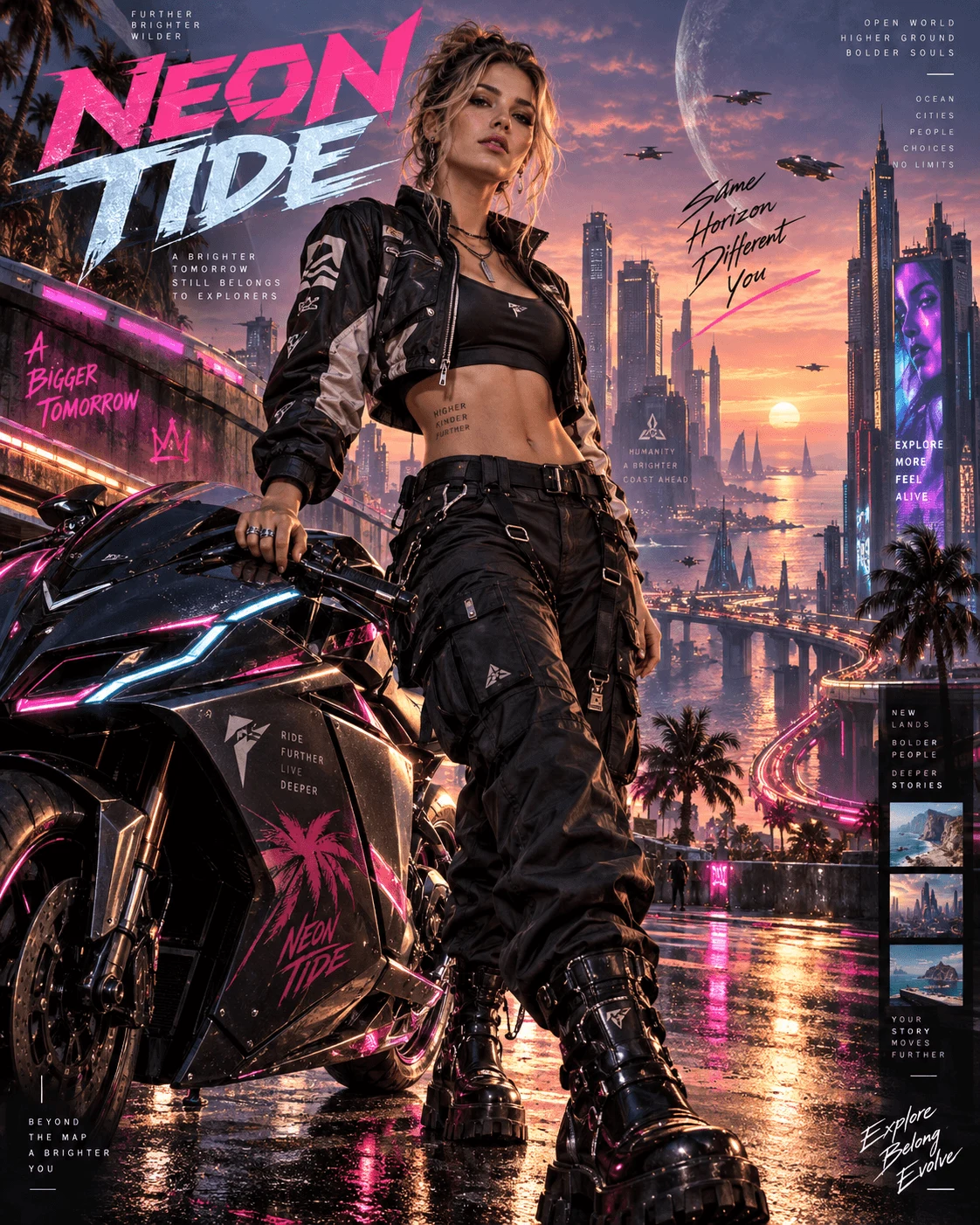
Describe the exact wording, hierarchy, spacing and alignment for a poster, label or packaging concept. Use the prompt to explain where text belongs, then proofread the generated lettering before use.
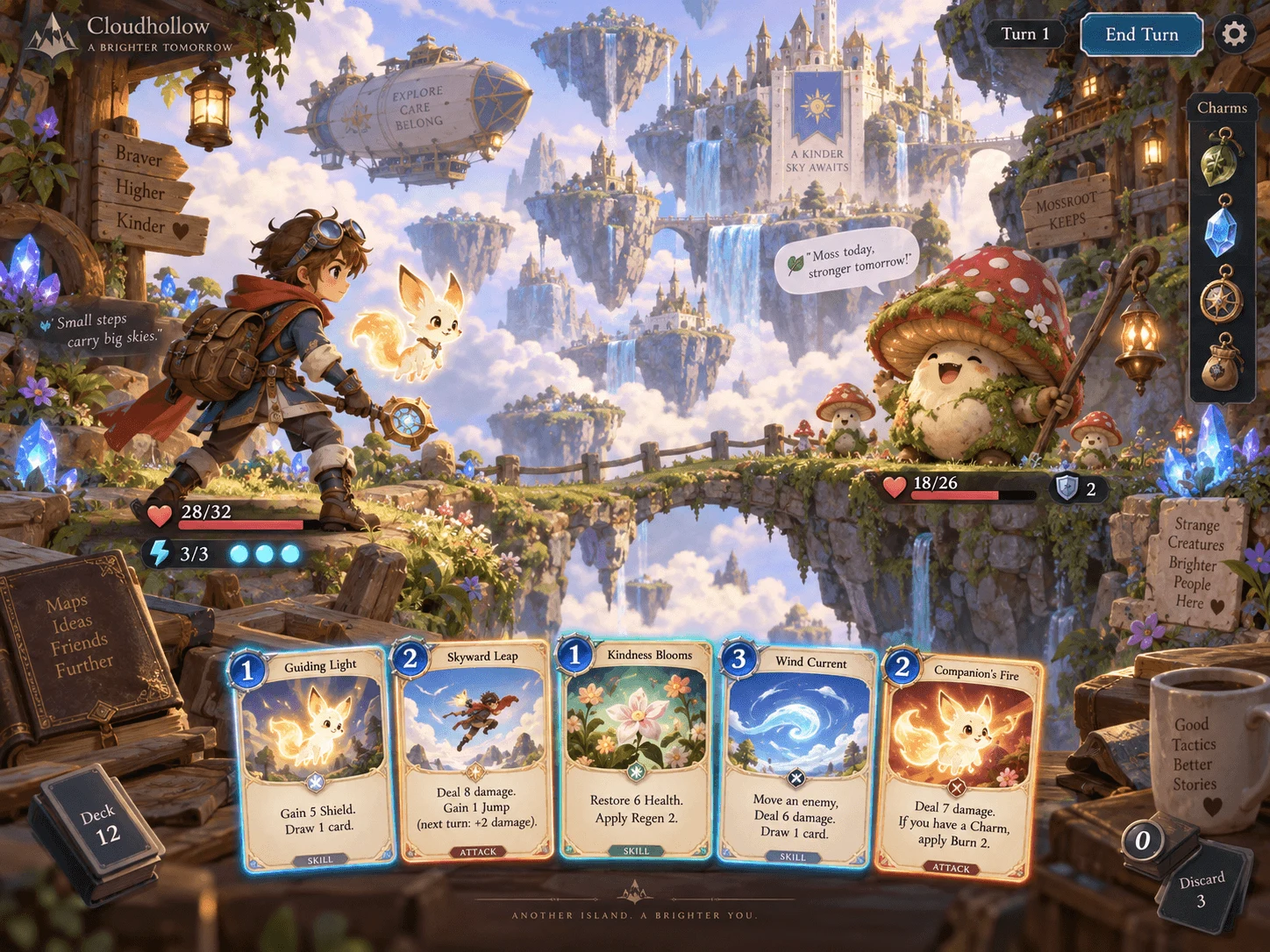
Specify object counts, positions, materials, camera direction and lighting in a structured brief. For complex layouts, make the relationship between elements explicit and check the result against each requirement.
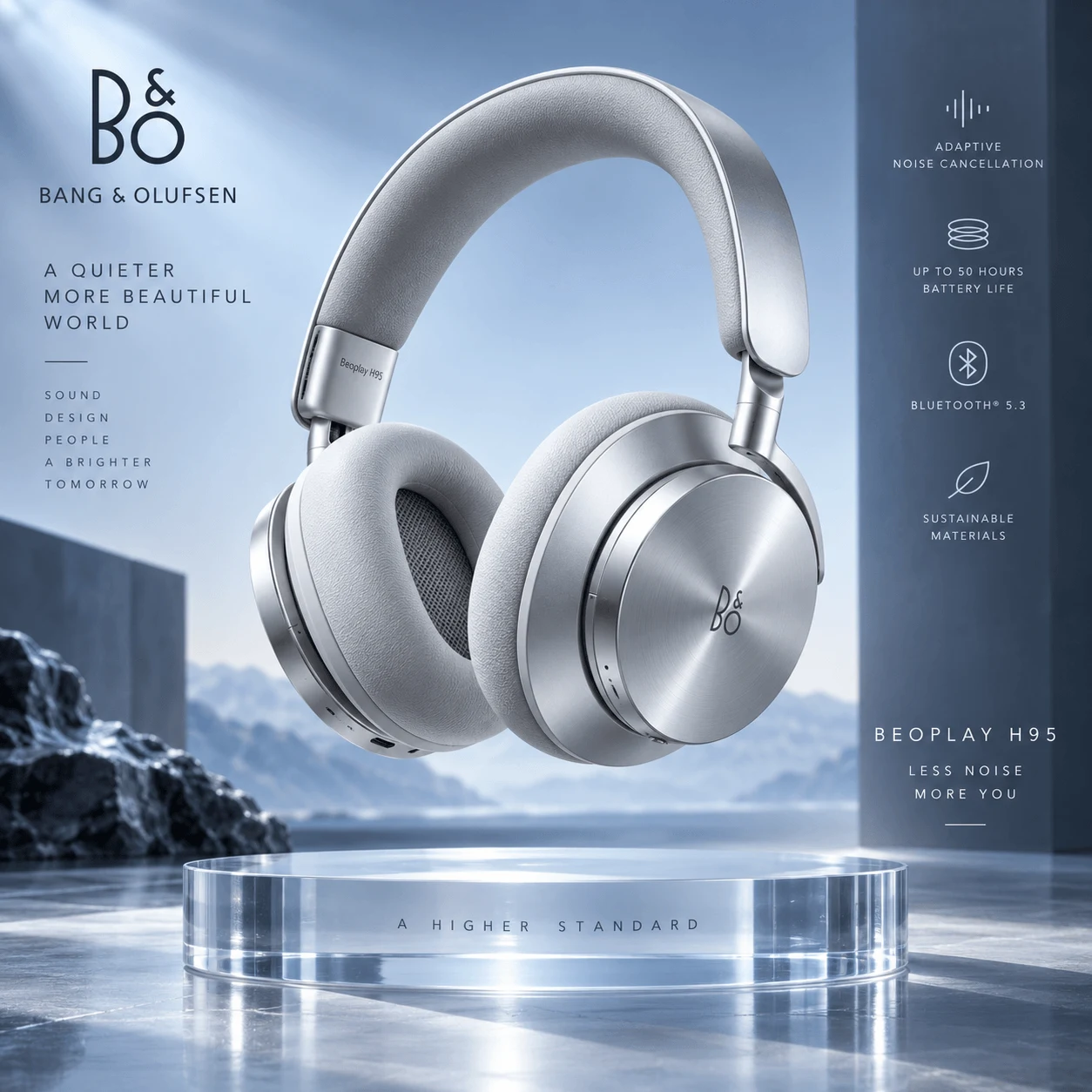
Use an available result as the reference for the next version. Describe a focused change and name the subjects, colours and composition you want to preserve; compare each edit with the approved image.
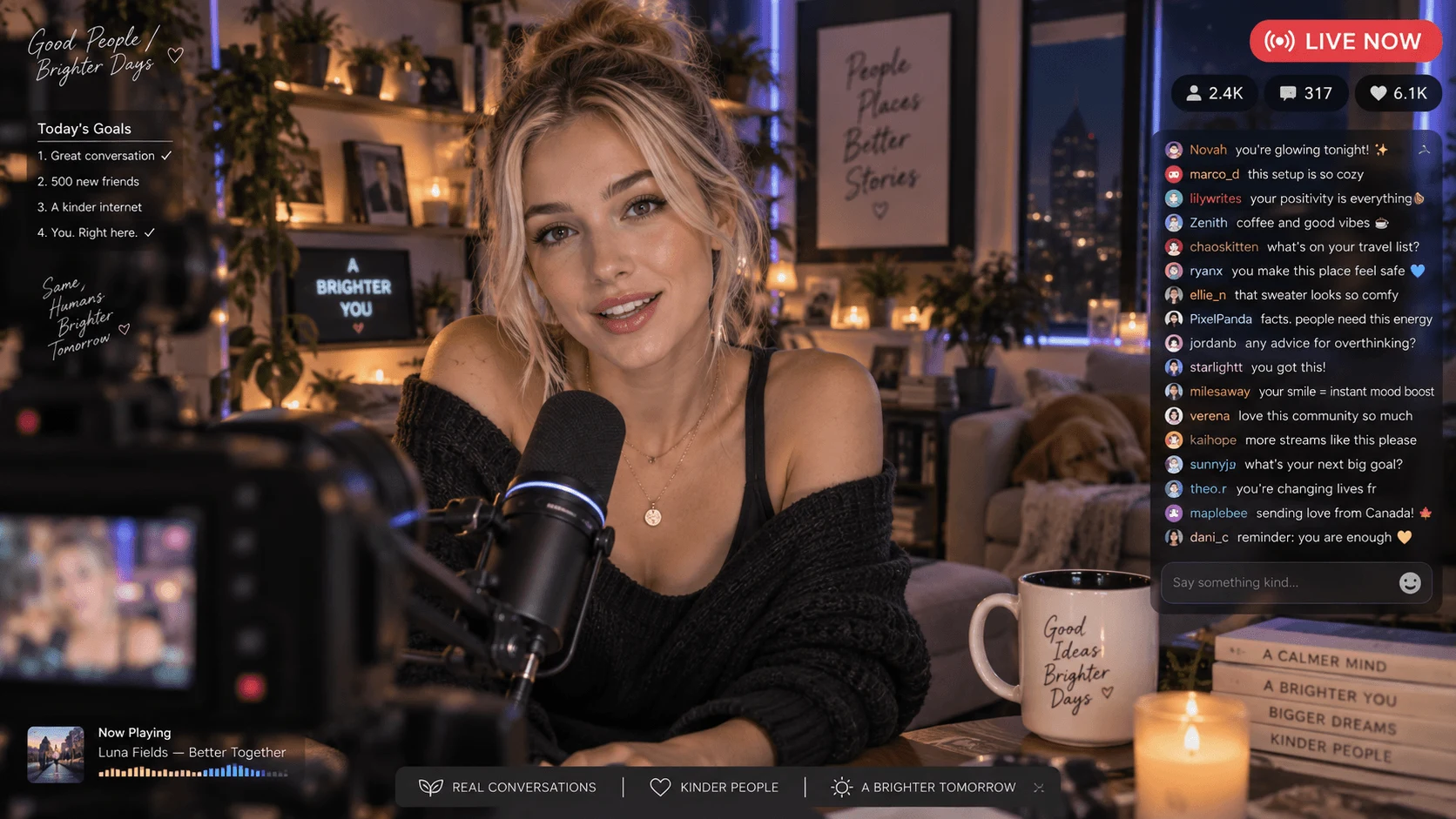
Explore close-up portraits, fabrics, reflections and product materials with detailed references. Inspect faces, hands, logos and fine geometry in the result, especially before using an image in a commercial project.
Write the subject, composition, lighting, colours and exact text. Add an authorised reference when you want to guide an existing subject or layout.
Choose the model and an available resolution, aspect ratio, quality and output count. Review the current credit quote before confirming.
Inspect the result, download an available output or use it as a reference for another focused edit. Each new generation has a separate quote.
Compare the creative focus of the two models, then choose the available settings that fit your project. This overview is not an independently measured quality benchmark.
| Feature | GPT Image 2.5 | GPT Image 2 |
|---|---|---|
| Positioning | Detail-focused generation and editing | General creative generation and editing |
| Image clarity | Emphasis on larger-image detail | Detailed everyday compositions |
| Text rendering | Emphasis on typography and spacing | Titles, labels and common layouts |
| Prompt precision | Emphasis on complex layout constraints | Detailed prompt-based creation |
| Editing consistency | Emphasis on repeated refinements | Flexible image editing |
| Best for | Campaigns, packaging and detailed revisions | Social visuals and concept exploration |
Explore detailed visuals, text-led compositions and iterative edits for creative, marketing and design work.
Develop campaign concepts, posters and social ads with a clear headline, controlled layout and intentional product placement.
2Explore product shots with detailed materials, lighting and reflections. Compare shapes, packaging and labels with your original reference.
3Refine a selected detail across successive versions while explaining which subjects, colours and composition should remain consistent.
4Build related visual concepts using a shared colour palette, typography direction, framing and reference images for your campaign.
5Sketch interfaces, diagrams and presentation visuals with defined labels, spacing and hierarchy. Verify generated text and numbers.
6Prepare product scenes, lifestyle concepts and promotional banners. Review product accuracy and lettering before publishing to a storefront.
These posts and resources may cover other versions in the same family. Open the source for context; they are not results generated on Gapti.
Introducing ChatGPT Images 2.0 A state-of-the-art image model…
It can generate 100 completely unique pixel art items with labels…
gpt-image-2 is now available to everyone.…
It is an image-generation and editing option in this workspace. Create from a written brief or guide an edit with reference images, then inspect the actual output before continuing.
The comparison above describes their creative focus, including fine detail, typography and iterative editing. Results depend on the prompt and settings; use actual outputs to judge suitability for your project.
Specify exact wording, placement and visual hierarchy in your prompt. It can be useful for posters and packaging concepts, but all generated lettering should be proofread.
Add an image you may use and describe the intended change. You can guide lighting, colours, objects or layout with references within the workspace's displayed model limit.
Yes. Bring an available output into a new draft as a reference, describe the next change and confirm a new quote. Inspect each version for unintended changes.
Use product references to explore studio scenes, materials, reflections and promotional layouts. Check shape, logos, labels and other commercially important details against the source.
Designers, marketers, creators and product teams can explore visual concepts in a browser. Available settings, generation time and output quality vary with the selected model and request.
Check text, faces, product details, and layout. Review the credit quote before confirming a generation.
Try GPT Image 2.5