Edit this image: keep the person unchanged, replace the background with [scene], natural lighting, realistic edges, no extra objects.
Use this promptAI Photo Editing
Edit images with prompts: change backgrounds, keep faces stable, remove distractions, preserve key details, and create polished marketing-ready photo variations online.
Create
- Model
- GPT Image 2.6 Flare
- Ratio
- 1:1
- Resolution
- 1K
- Quality
- Medium
- Count
- 1
Estimated credits4 credits
Get a quote before generating.
Loading…
Explore ideas with AI Photo Editing
What to keep unchanged + exact area to edit + new background or object + realism level + final use.
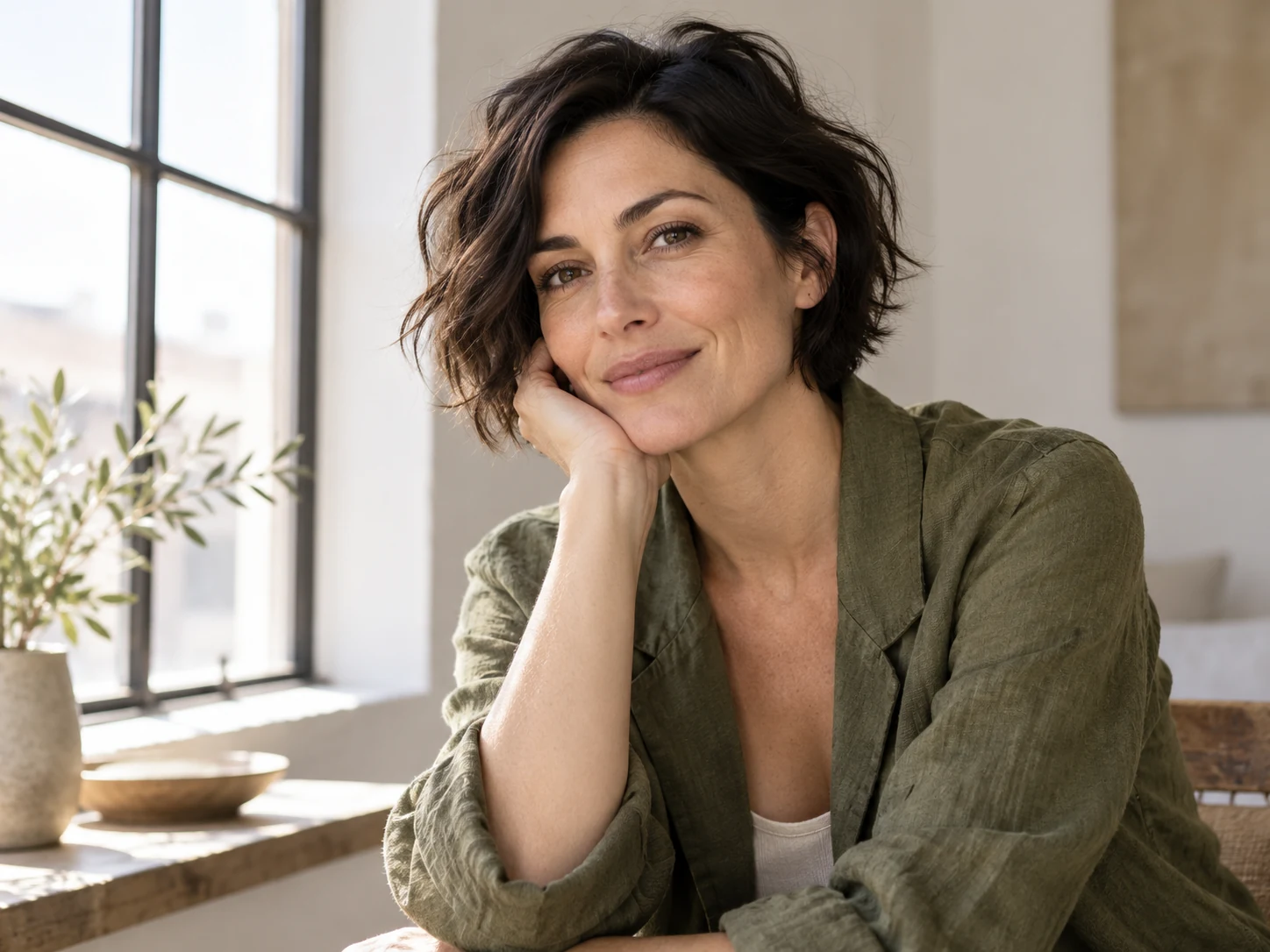
Change or clean backgrounds while preserving the subject.
Remove objects, distractions, or messy visual areas.
Keep facial identity and clothing stable during creative edits.
Prepare source photos for ecommerce, social posts, and ads.
Prompt ideas for AI Photo Editing
Remove [object] from the image, preserve the original subject, shadows, and perspective, clean professional result.
Use this promptChange only [area] to [new detail], keep face, pose, clothing, and composition unchanged.
Use this promptHow to use AI Photo Editing
- 1
Start with an idea or reference
Write the subject, scene and intended change. Sign in before uploading a reference image you own or may use.
- 2
Choose settings and review the quote
Choose the available model and output settings in the workspace. Get a quote, check the credit cost and explicitly confirm to start.
- 3
Review the result
Preview the completed task and download an available output. Check details before publishing; start another version only when you choose to.
Published scene examples
Explore published gallery images for inspiration. Review the actual output yourself; these examples do not guarantee your result.
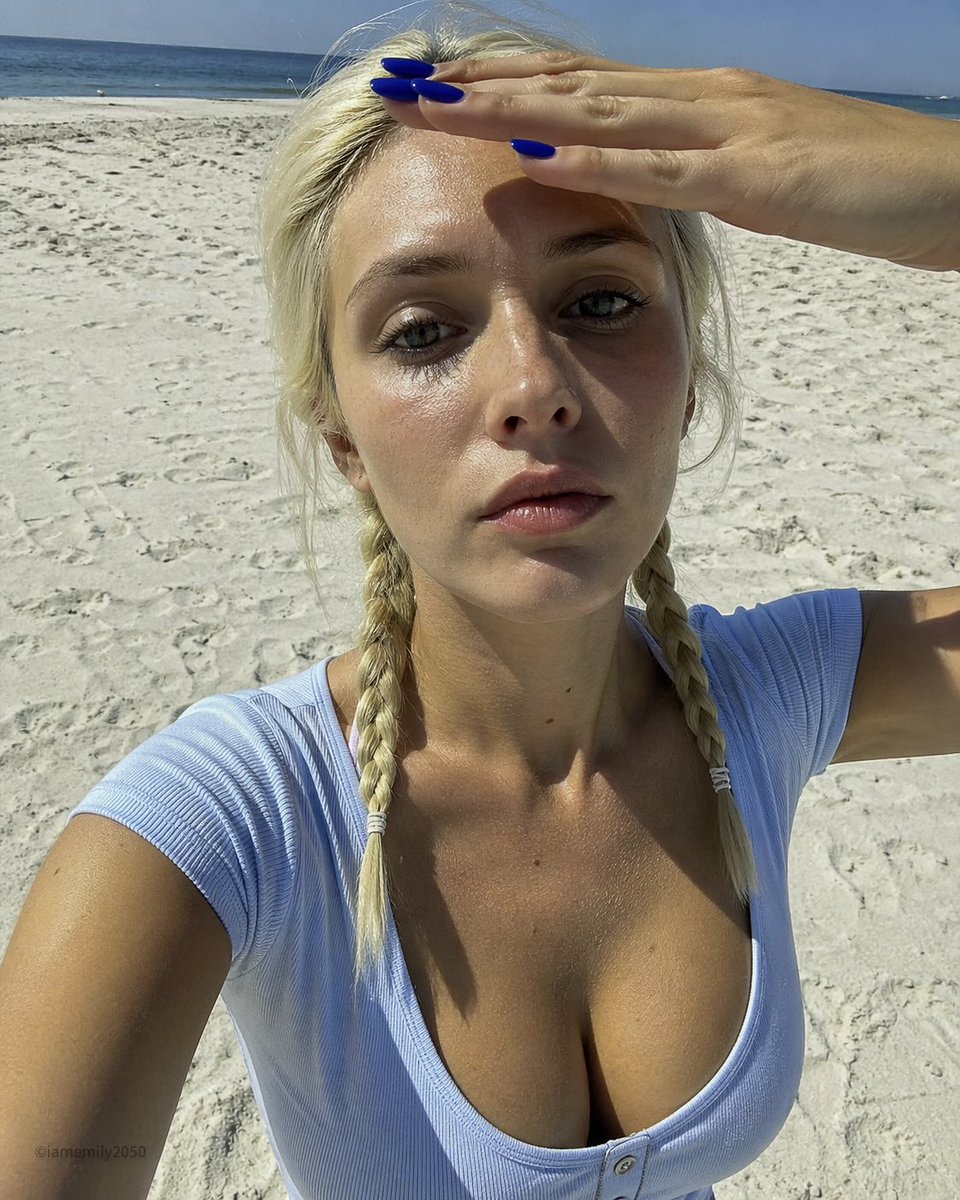
High-angle beach phone selfie
Imported from awesome-gpt-image-2 case 199. Source: @IamEmily2050
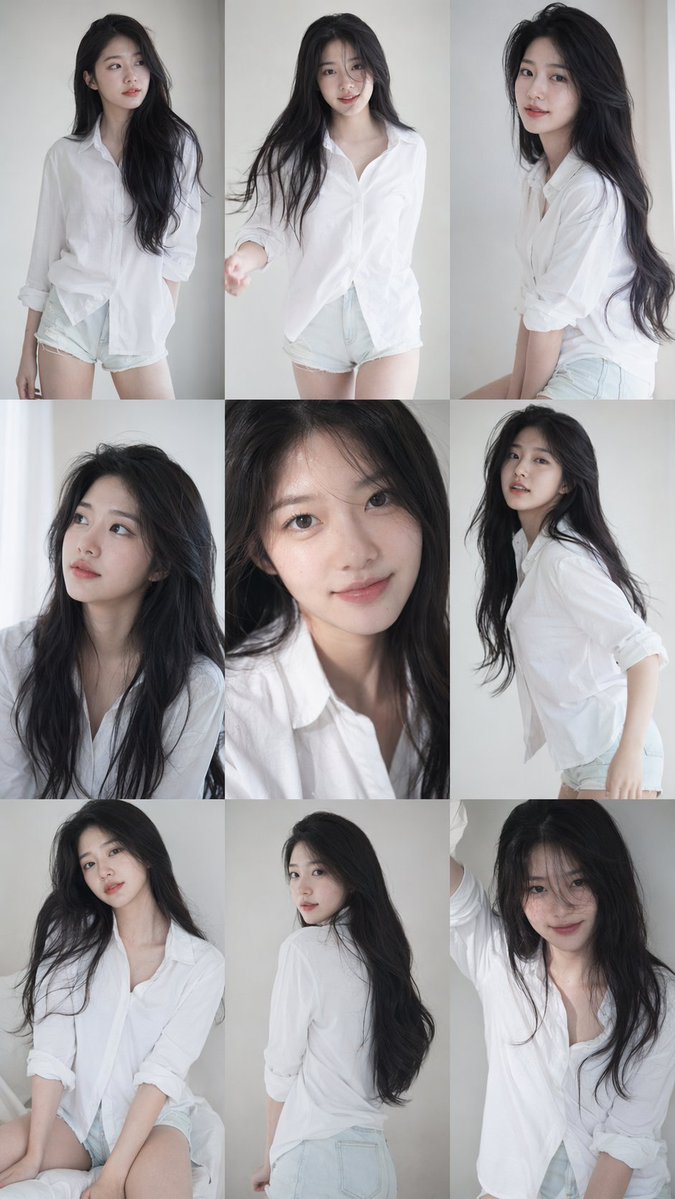
Korean idol portrait grid
Imported from awesome-gpt-image-2 case 219. Source: @BubbleBrain
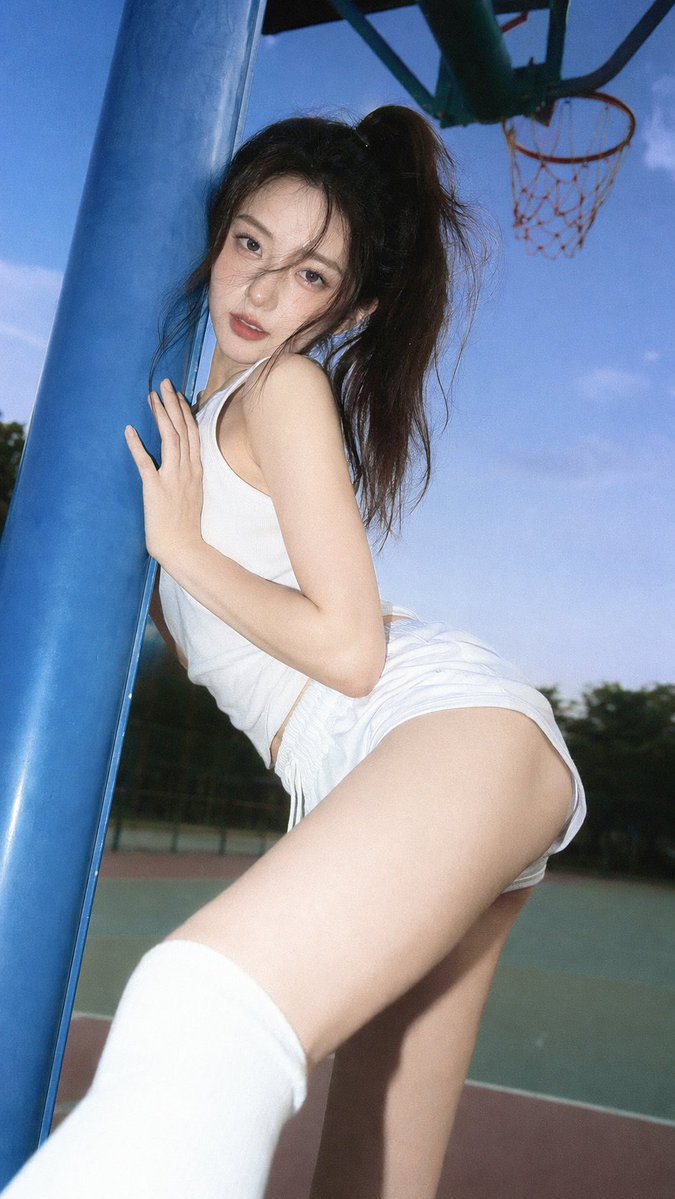
Film-flash sports court portrait
Imported from awesome-gpt-image-2 case 240. Source: @BubbleBrain
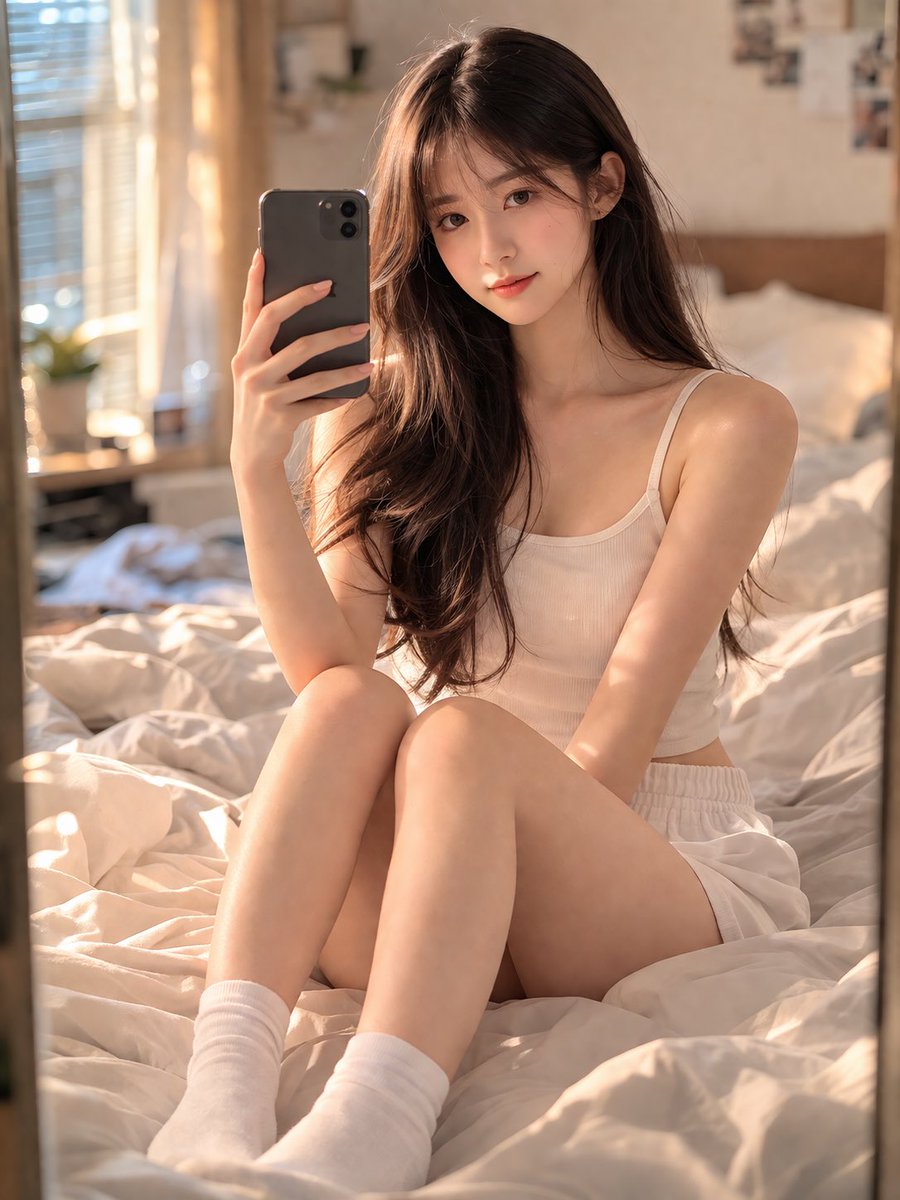
Cozy bedroom portrait selfie
Imported from awesome-gpt-image-2 case 284. Source: @Shinning1010
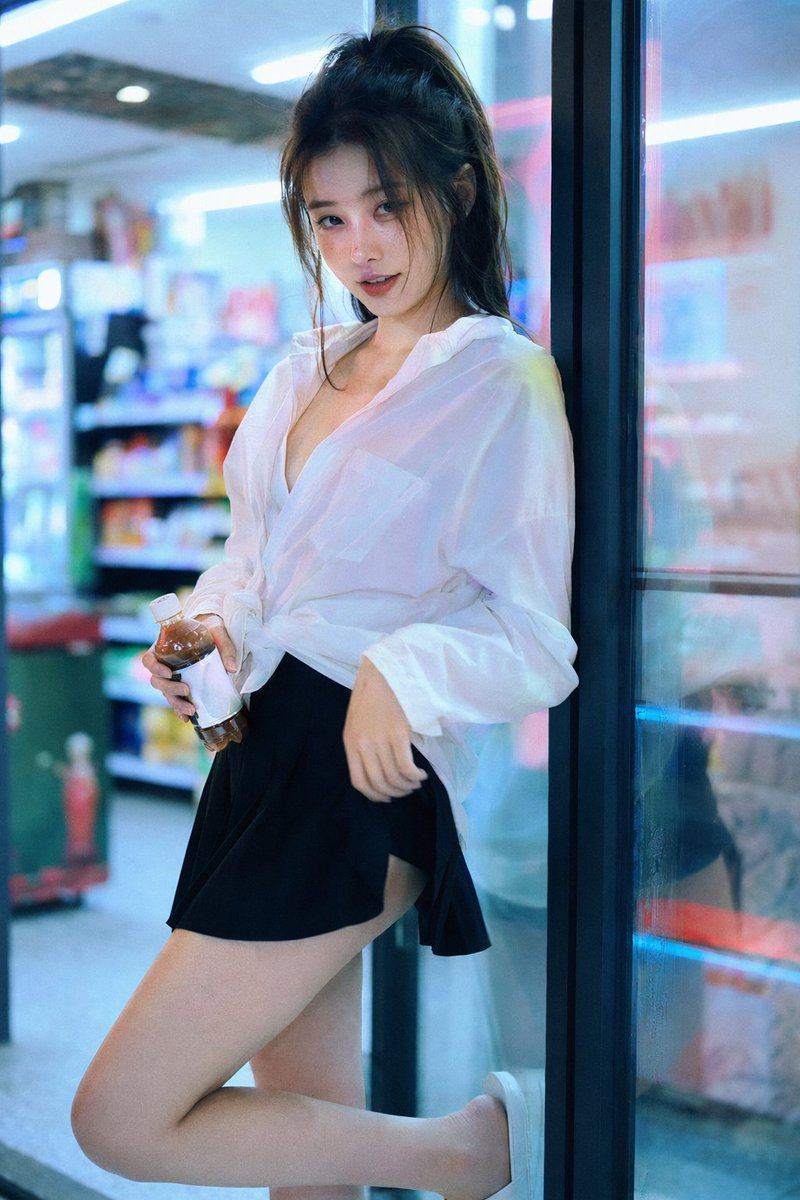
Neon convenience-store night portrait
Imported from awesome-gpt-image-2 case 305. Source: @BubbleBrain
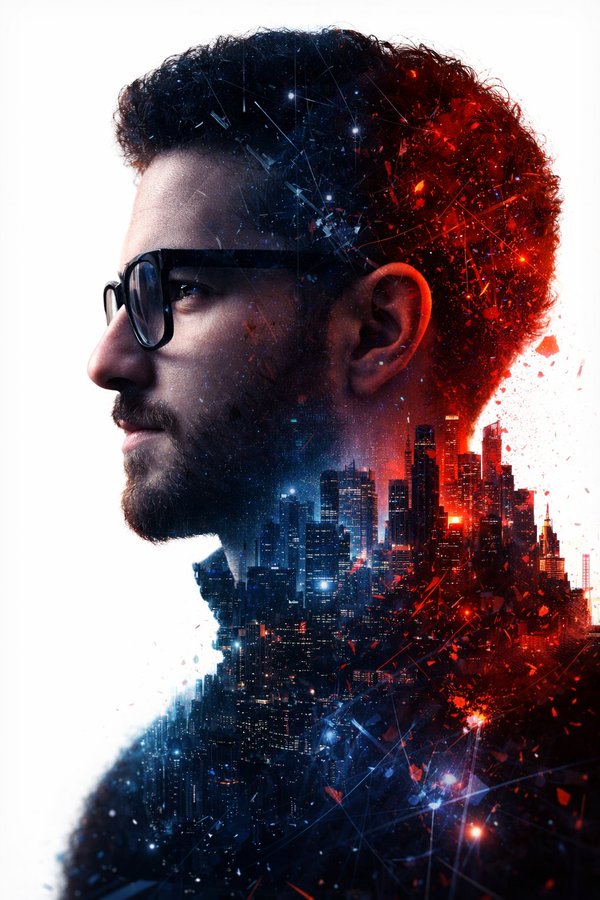
Red-Blue Futuristic Double Exposure Portrait
A futuristic double-exposure portrait with red and blue lighting.
AI Photo Editing: frequently asked questions
How do I keep a face unchanged?
Explicitly say the face, expression, pose, and identity must remain unchanged, then describe only the target edit.
Is this only for background changes?
No. It also supports cleanup, object replacement, local edits, and style refinements.
When do I need to sign in?
Reference uploads and cloud sessions require sign-in. The workspace shows the available actions for your account. A selected visitor file is not uploaded automatically after sign-in.
How do I check the price?
The price updates for your selected model, settings and output count. Review it, then choose Create. Failed paid outputs follow the applicable refund rules.
Which reference images can I use?
Use authorized JPG, PNG or WEBP images. The uploader checks file type, size and the current image limit before upload. Available reference behavior depends on the selected model.
Are the examples guaranteed results?
Illustrations show possible creative directions, not guaranteed outputs. Inspect identity, text, motion and other important details in your actual result before use.
Continue with the right Gapti workflow
Ready to create with AI Photo Editing?
Review the credit cost before confirming each new generation.
Start creating