
1
Build a scene around sight and sound
Plan a short story, product moment or atmospheric shot with camera direction and sound cues. Image and frame inputs depend on the selected mode.
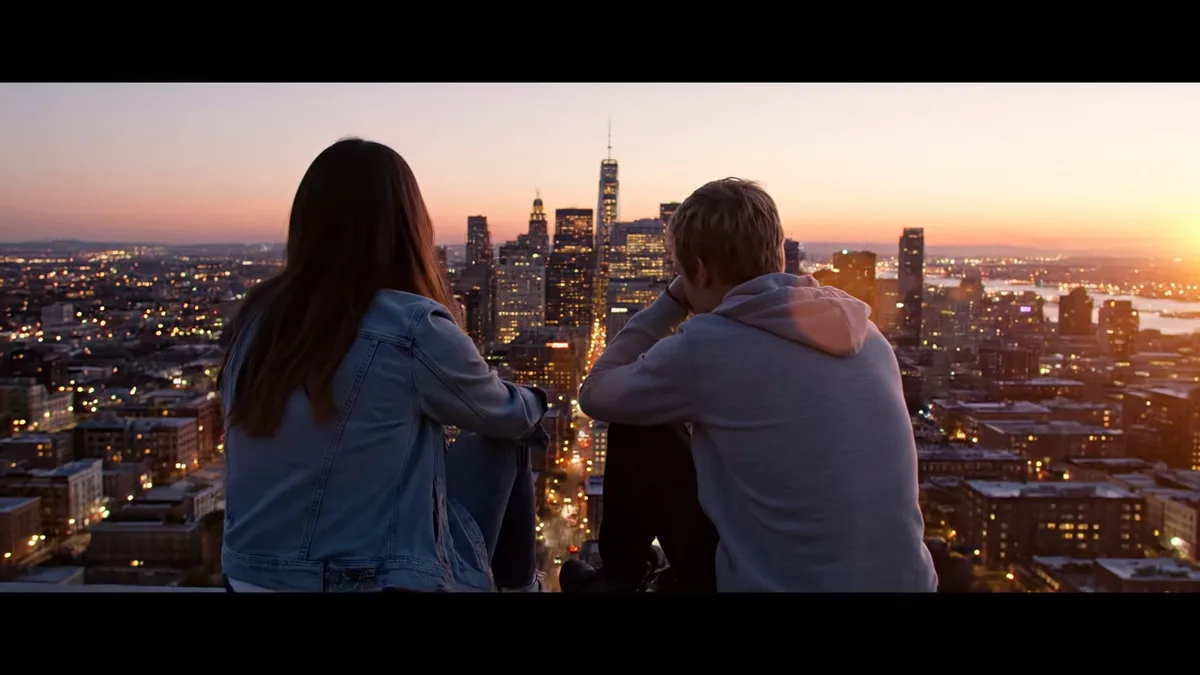
Explore video scenes with Veo 3.1 in Lite, Fast or Quality mode. Choose a mode for its available inputs and describe both the action and the soundscape.
Start creatingReference-site example; not a verified result generated on Kitta AI.
Lite: text only. Fast: text, first/last frames or up to three reference images. Quality: text or first/last frames.
720p / 1080p · 8 seconds
Variants: Lite / Fast / Quality
Explore video scenes with Veo 3.1 in Lite, Fast or Quality mode. Choose a mode for its available inputs and describe both the action and the soundscape.
Plan a short story, product moment or atmospheric shot with camera direction and sound cues. Image and frame inputs depend on the selected mode.
Select Lite, Fast or Quality and check which image or frame inputs that mode offers.
Describe the setting, action, camera and audio; add references where the selected mode supports them.
Generate with available settings, then watch and listen to the result before downloading.
Lite: text only. Fast: text, first/last frames or up to three reference images. Quality: text or first/last frames.
720p / 1080p · 8 seconds
The price updates for your selected model, settings and output count. Review it, then choose Create. Failed paid outputs follow the applicable refund rules.
Examples illustrate creative directions. Results vary with the model, prompt and source images; inspect your own output before use.
Reference uploads and cloud sessions require sign-in. The workspace shows the available actions for your account. A selected visitor file is not uploaded automatically after sign-in.
Specify the subject, composition, lighting and details to preserve. Use clear instructions for each change.
Use images you have permission to use. Keep their order intentional and describe how each should influence the result.
Review the first result, adjust your instructions and create another version when needed.
Keep important wording explicit. Check spelling, spacing and composition before publishing.
Explore video scenes with Veo 3.1 in Lite, Fast or Quality mode. Choose a mode for its available inputs and describe both the action and the soundscape.
Start creating